
Dinky
Dinky makes files smaller.
A macOS app that auto-converts images, videos, audio, and PDFs. Free and open source.
35 MB · v2.15.0 · Apple Silicon · macOS 15 Sequoia
Dinky makes files smaller.
A macOS app that auto-converts images, videos, audio, and PDFs. Free and open source.
35 MB · v2.15.0 · Apple Silicon · macOS 15 Sequoia
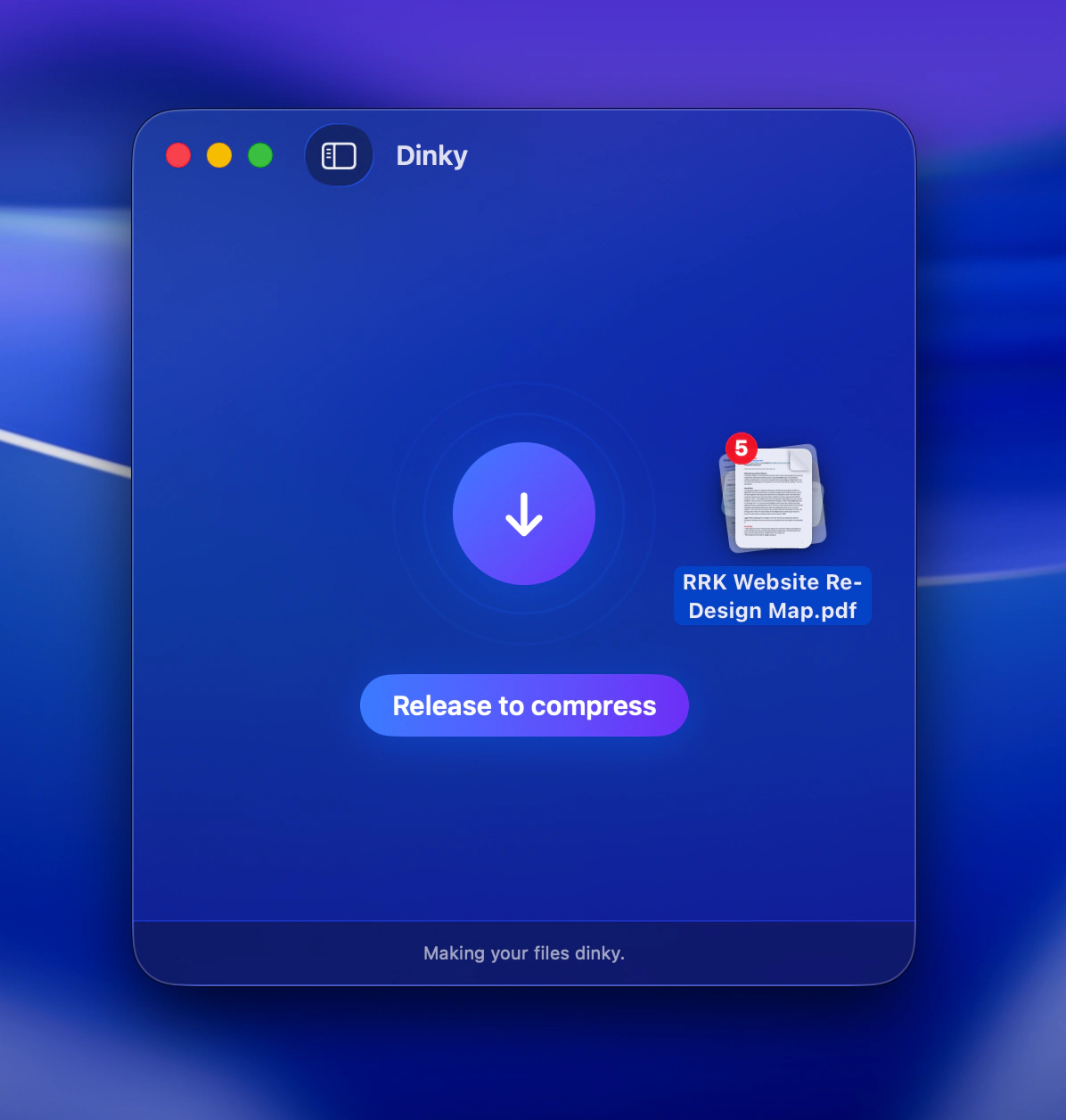
Drop images, videos, audio, or PDFs on the window, the Dock icon, or use the file picker. No fussing.
Copy an image anywhere — screenshot, Figma export, browser grab — and hit ⌘⇧V. Works system-wide, even when Dinky isn't focused.
One app for four — JPG, PNG, WebP, AVIF, HEIC, PDF, MP4, MOV, WAV, FLAC, AIFF, M4A, MP3, and more. Drop anything; Dinky picks the right pipeline.
Save your favorite settings as a named preset and apply them in one click.
Images: WebP, AVIF, lossless PNG, or HEIC — oxipng for PNG fidelity. Audio: AAC, ALAC, WAV, AIFF, FLAC, or MP3 — cross-convert via afconvert; MP3 encode via bundled LAME. Video: H.264/HEVC export; optional FPS cap. PDF: flatten, preserve, target size; optional Vision OCR on scan-like pages before encoding.
Auto-detects photo vs. graphic (UI, illustration, logo, screenshot) and picks quality accordingly. Or force Photo, Graphic, or Mixed per preset.


Pick a folder for Dinky to mind. New files that land there get shrunk on the way in — one global watcher, or one per preset.
For example, watch a Dropbox-synced folder such as ~/Dropbox/Inbox so saves and downloads compress as they appear on disk. Cloud folders & details in the FAQ →
Just installed it on my Mac and it’s fantastic. Not only is it incredibly efficient and fast, but it also has a beautiful UX that is very much appreciated. You can really tell the level of thought and care that went into it. If it was a paid app, I would have happily paid $5 for it, and I think many others would as well.
Save next to the original or pick a custom folder — globally or per preset. Then decide what happens to originals: keep them, move to the Trash, or tuck them into a Backup folder, with a separate choice for Watch Folders.
Resize on the way out with common web presets or a custom value.
Binary-searches the quality level to hit an exact KB or MB target.


Multiple files compress concurrently with live results as they finish.
Pick batch speed: Fast is one at a time, Faster runs a few jobs together, and Fastest opens the taps — up to eight at once when your Mac is game.
Drop files without compressing. Right-click any item to pick a format and fire when you're ready.
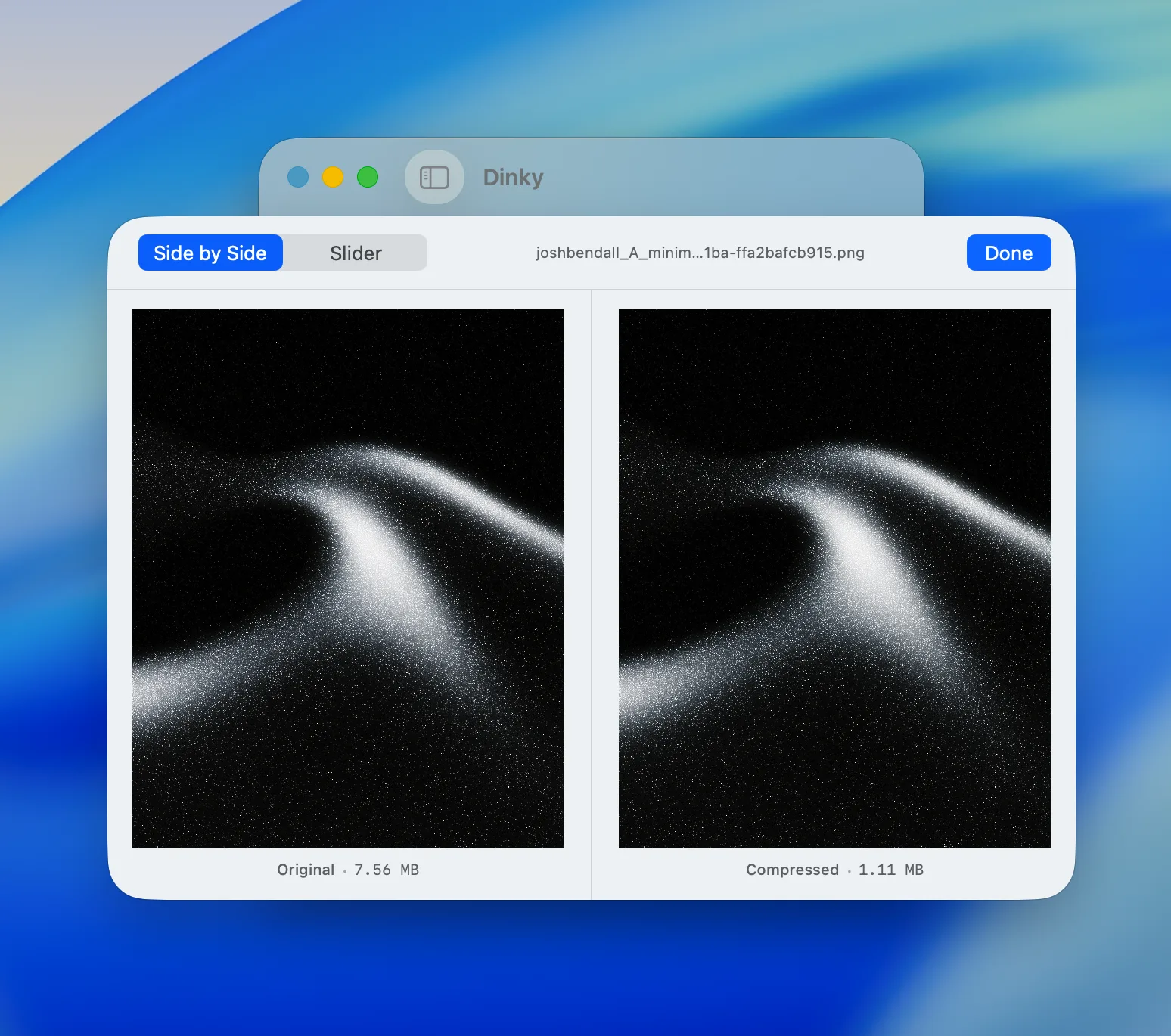
Slider or side-by-side. Compare the original and the compressed version, then keep it or back out — nothing lands on disk until you say so.
Compress straight from Finder’s right-click menu, no app launch needed.
Drop or paste a direct image, video, audio, or PDF link. Dinky downloads it, compresses, and cleans up the temp copy. Up to 500 MB.
Drop Dinky’s Compress Images action into any Apple Shortcut and pass the smaller files to the next step.
Pro users can run dinky compress --json or keep dinky serve running on loopback for scripts and AI agents.
Scrubs EXIF, GPS, and camera data on the way out. Smaller files, nothing personal left behind.
No sign-in and no upload step — files stay on disk unless you choose a cloud folder yourself.
Open History to see what you compressed — paths, formats, and before/after sizes, all in one place.
Functional UI follows your Mac into English, Spanish, French, Italian, German, Japanese, Korean, Dutch, Portuguese, Russian, Turkish, Simplified, and Traditional Chinese.
Opt in once and Dinky's ready the moment you log in — handy alongside Watch Folders for set-and-forget compression.
Most tools pick one specialty. Dinky covers stills, MP4 shrink, PDF compression, and audio cross-converts — optional scan OCR before PDF encoding — free, open source, and tiny.
*We don't want you to give up quality for a smaller footprint — Dinky stays light without cutting corners on how your images, video, audio, and PDFs look.
|
Dinky
|
Image
ImageOptim
|
Video
HandBrake
|
Audio
Clop
|
PDF
Preview
|
|
|---|---|---|---|---|---|
Price
|
Free | ||||
macOS native
|
|||||
Batch processing
|
|||||
Presets
|
|||||
Watch folder
|
|||||
Strip metadata
|
|||||
Outputs optimized format
|
|||||
Files stay on device
|
|||||
CLI / local API
|
|||||
App size
|
35 MB |
Menu-bar and clipboard–first, with freemium Pro automation. See how that stacks up against a free MIT drop zone with watch folders included and heavier PDF tooling.
Full comparison → Dinky vs Picmal PicmalPaid Mac suite bundled with a much larger footprint. Compare when open source, zero license cost, and a ~35 MB install matter more than an all-in-one paid bundle — Dinky now covers audio too.
Full comparison → Dinky vs Smol SmolPaid menu-bar app with Smart Clipboard and AI upscaling. Compare when free OSS, audio, watch folders, and a ~35 MB install matter more than automatic clipboard compression.
Full comparison →Each page is Dinky vs one other app—images, video, audio, or PDFs.
Real quotes from GitHub Discussions. Want to share your take? Leave a review.
Dinky isn't from the App Store, and the build isn't notarized today. That's a distribution choice, not a data choice. The source is on GitHub under MIT so you can read what it does.
Compression stays on your Mac. No Dinky cloud, no account. Your files don't upload to us — only you pick a cloud-synced folder if you want outputs elsewhere.
What leaves the machine
That's Gatekeeper — macOS blocks first launch for apps outside the App Store and Apple Developer Program.
Yes. It’s SwiftUI + macOS frameworks; a Windows or Linux port would be a different app.
Apple Silicon (M-series Mac). Intel-based Macs are not supported for the current DMG and Homebrew cask. macOS 15 Sequoia or later. On macOS 26 Tahoe you get the full liquid glass UI; on Sequoia it falls back to the frosted material look.
Yes. Free to download, free to use, open source on GitHub under MIT. No trial, no watermarks, no "pro" tier.
Nope. Everything runs locally on your Mac — no Dinky servers, no account. Once a day the app checks GitHub for a newer release (that's the only automatic outbound request). URL Drop only hits a URL you give it. Details: Your data, in plain English.
It isn't Apple-notarized or Mac App Store today. That's distribution — the binary ships straight from GitHub as free MIT open source. For what the app actually talks to over the network, read Your data, in plain English. First-launch Gatekeeper pain is separate:
Yep — pro users can build the local dinky CLI from this repo and run dinky compress --json or dinky serve on 127.0.0.1. See local CLI docs for examples and schema details.
In Settings → Original Files, choose Keep, Move to Trash, or a backup folder. Default is Keep. Watch Folders can use a different setting — handy if you want a watched folder to empty itself into Trash while everything else stays put.
Images: JPG, PNG, WebP, AVIF, HEIC/HEIF, TIFF, BMP → WebP, AVIF, lossless PNG, or HEIC. Audio: AAC (M4A), ALAC, WAV, AIFF, FLAC, MP3 — cross‑convert via macOS afconvert, with bundled LAME for MP3 encode. Video: MP4/MOV → MP4 (H.264 or HEVC); optional FPS cap. PDFs: flatten, preserve, target size; scan-like PDFs can get OCR for search first.
Saved settings (format, quality, destination, etc.) — one click from the sidebar. Create them in Settings → Presets.
Yes, with Watch Folder. Any supported file saved or moved into a watched folder is picked up and compressed — handy for Figma, Lightroom, or screenshot exports. You can watch a path inside Dropbox, Google Drive, iCloud Drive, or any other cloud folder that syncs to your Mac; Dinky reacts once the file is fully on disk (the sync app has to finish downloading first).
Yes. Drag a direct media link (https://…/photo.jpg, etc.) onto the window, or copy it and hit ⌘⇧V (Clipboard Compress). Direct file URLs only — not web pages.
Not directly. Set a preset’s destination to a cloud-synced folder (e.g. ~/Dropbox/Compressed/) so outputs sync automatically. The same idea applies to Watch Folder: pick a watched path under your Dropbox (or Drive) folder for inputs, or a synced subfolder as the destination so compressed files upload with everything else.
Dinky walks quality down as far as your preset allows to stay under the cap. If the file is still larger than your target at minimum quality, you’ve hit the practical floor for that source at its current pixel dimensions — Dinky returns the smallest output it could produce, not a magically smaller one.
The 1.x line (from 1.0) was images only. 2.0 added videos and PDFs alongside images. 2.10 added audio compression and an optional video FPS cap. Older 1.x DMGs and ZIPs stay on GitHub Releases for archival use.
Derek Castelli is a freelance web designer in Figma and Webflow. He made Dinky after Optimage crashed mid-project.